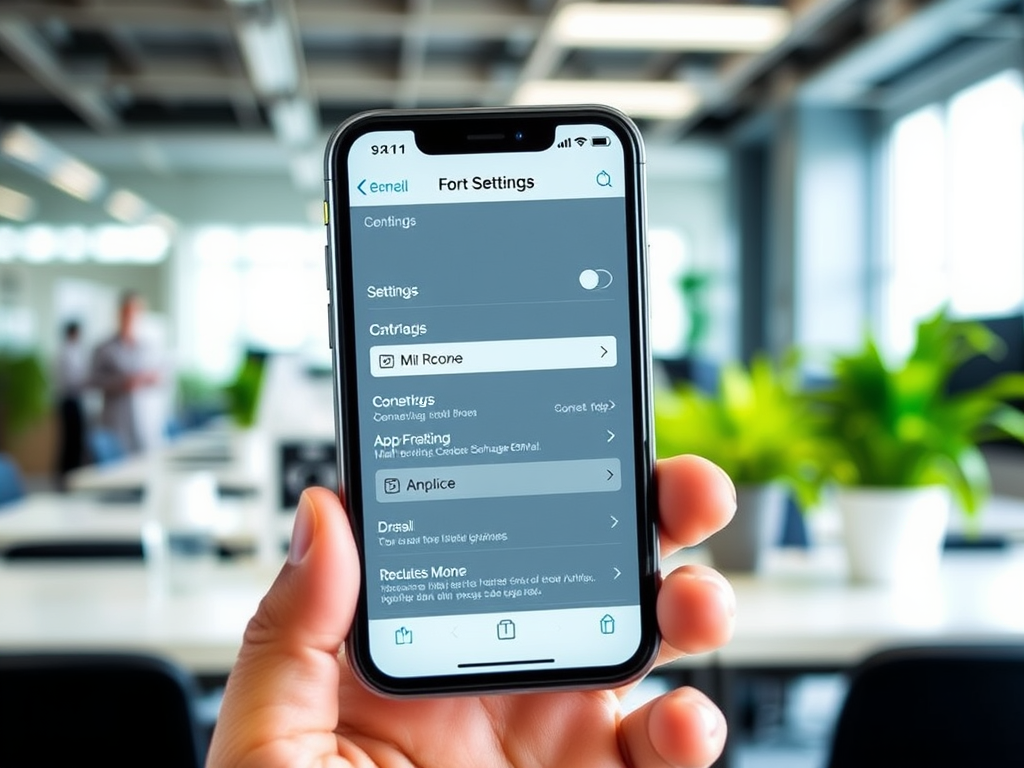
If your workplace uses an on-premise Exchange email server—not Microsoft 365—and you need to connect your iPhone to it, this guide walks you through the setup step-by-step. The instructions are accurate as of early 2025, though Apple occasionally changes the layout of the iOS Settings menu. If you notice any discrepancies, feel free to leave a comment so we can update accordingly.
Who This Guide Is For
This setup is only for users with an on-premise Exchange server. If you’re using Microsoft 365 or Exchange Online, you’ll need to follow a different tutorial as the process differs significantly.
What You’ll Need
Before starting, make sure you have the following five pieces of information (ask your IT team if unsure):
- Email address – e.g., yourname@company.com
- Password – possibly the same one you use to log into your work computer
- Mail server name – typically looks like mail.yourdomain.com or may be an IP address
- Local domain name – this is often different from your email domain
- Username – this may vary depending on your organization’s setup
Step-by-Step Setup on iPhone
- Open the Settings app – Locate the gear icon and tap it.
- Scroll down and tap on “Apps”. (Note: If this option is missing, you may need to update your iPhone to the latest version of iOS.)
- From the list, select “Mail”, then tap “Mail Accounts”.
- Tap “Add Account”, then choose “Microsoft Exchange”.
- Enter your email address and optionally update the description (e.g., call it “Work Email”).
- Tap Next, then select “Configure Manually” (do not sign in via Microsoft).
- Enter your email password, then tap Next again.
- Fill in the following:
- Server: your mail server’s address
- Domain: your local domain name
- Username: your domain username
- Password: re-enter if required
- If everything is correct, the system will verify the information and prompt you to select which data to sync:
- Mail, Contacts, Calendars (recommended)
- Reminders, Notes (optional)
- Tap Save to complete the setup.
Troubleshooting Tips
- If the setup fails, double-check all the fields for typos.
- Make sure your iPhone is running the latest version of iOS.
- Contact your IT team if you’re unsure about your credentials or server information.
- Some offices may have a designated person to help with mobile email setup—don’t hesitate to ask for help.
Conclusion
Setting up an on-premise Exchange account on your iPhone can be straightforward when you have the right information at hand. Follow the steps carefully, and reach out to your IT support if needed. Once configured, your work emails, calendar, and contacts will be conveniently accessible on your iPhone.


Leave a Reply